
Scripting basics
Scripts are written in JavaScript. Simple actions are easier to build from system functions; use a script when you need conditions, calculations, loops or work with several elements at once.
There are two kinds of scripts.
| Client | Server | |
|---|---|---|
| Run in | The operator program and browser, separately for each client | The server, one instance per project |
| Written in | Element and screen events, scripts/*.js modules |
Tasks and serverscripts/*.js modules |
| Can use | Tags, screen elements, windows, operator questions | Tags, databases, files, the log, acknowledgement |
| Work with no operator | No | Yes |
| Time limit per run | 2 seconds | 5 seconds |
This page covers client scripts. For details on each object, see the Screen API reference, Elements from scripts, Server scripts, Debugging and errors and Examples.
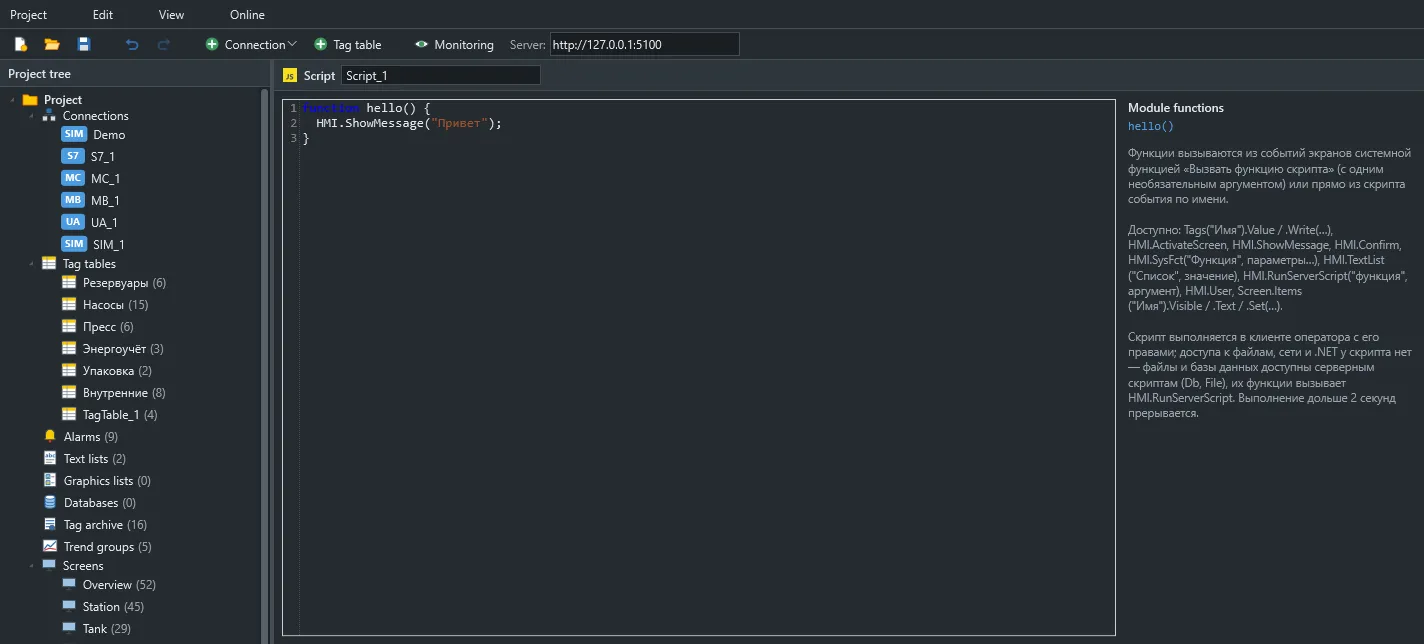
Where to write scripts
Section titled “Where to write scripts”On an element or screen event
Section titled “On an element or screen event”Open the Events tab and choose a script instead of a function list. The code runs as a function body:
returnends the script early;var,letandconstcreate variables that live for this run only;- the
Itemvariable refers to the element whose event is running.
if (Tags("Line.Mode").Value !== 1) { HMI.ShowMessage("The line is not in automatic mode"); return;}Tags("Line.Start").Write(true);In a project module
Section titled “In a project module”scripts/*.js files are shared client modules. Functions and global variables declared in them are visible to every event script.
var lastStart = null;
function startLine(mode) {  if (Tags("Line.Fault").Value) {    HMI.ShowMessage("The line is in fault");    return;  }  Tags("Line.Mode").Write(Number(mode));  Tags("Line.Start").Write(true);  lastStart = new Date();}
Call such a function directly from an event script (startLine(2);) or with the RunScript system function and a text argument. Through RunScript, the argument always arrives as a string, so convert numbers yourself, as Number(mode) does above.
In a “js:” condition
Section titled “In a “js:” condition”Lamps, pumps and other elements accept a running condition written as an expression prefixed with js:. In it, value holds the element’s tag value:
js: value == 3 || value == 5Keep the expression short and free of side effects, because it is evaluated at every tag change. An error in the expression counts as a condition that is not met.
When scripts run
Section titled “When scripts run”| Where the script is | When it runs | What Item is |
|---|---|---|
| Element event | Click, press, hover, value input and so on | That element |
| Screen open | The screen opened, including in a pop-up | null |
| Screen close | Moving to another screen or closing the window | null |
| Screen cycle | Periodically while the main screen is open | null |
Module function through RunScript |
When the system function runs | The element whose event called it, or null |
js: condition |
When the element’s tag changes | Not available; value is |
The Cycle period is a screen property: 1000 ms by default, 100 ms at least. The cycle runs on the main screen. Screens in pop-ups only get the open and close events.
Variable lifetime
Section titled “Variable lifetime”- Variables inside an event script last for one run.
- Module globals are created on the first script of a session and last until the user signs out. Each client has its own, so an operator in a browser and an operator at a console do not see each other’s variables.
- To share a value between clients or keep it across restarts, store it in an internal tag with the Retain flag.
Execution order
Section titled “Execution order”This is the most important thing to understand about a script run:
- The script runs to completion without waiting for the network.
- Reading a tag returns the last value the client received through its subscription.
- Element changes are visible to later lines at once and reach the screen in one repaint after the script ends.
- Tag writes and system functions (
Write,HMI.SysFct,HMI.ActivateScreen,HMI.RunServerScript,Item.Raise) are queued and run in order after the script. - If one of them fails, for example for lack of permissions, the operator sees a message and the remaining queued actions of that script are skipped.
An example of what this order means:
Tags("Counter").Write(5);HMI.ShowMessage(Tags("Counter").Value);  // the old value: the write has not been sent
var next = Tags("Counter").Value + 1;    // the right way: compute in a variableTags("Counter").Write(next);HMI.ShowMessage("Will write " + next);
HMI.ShowMessage messages and HMI.Confirm questions appear immediately, not after the script.
Limits
Section titled “Limits”| Limit | Value | What happens |
|---|---|---|
| Time per run | 2 seconds | The script stops with a message |
| Statements | 2,000,000 | The script stops; probably an endless loop |
| Recursion depth | 256 calls | “Recursion too deep” error |
| Memory | 64 MB | “Script used too much memory” error |
Time spent waiting for the operator to answer HMI.Confirm or HMI.ShowMessage does not count. A stopped script does not break the client, and later events work as usual.
What JavaScript offers
Section titled “What JavaScript offers”The standard language is available: let, const, arrow functions, classes, template strings, destructuring, Math, JSON, Date, RegExp, and array and string methods.
Browser and system facilities are not: window, document, fetch, setTimeout, setInterval, require and import are undefined. A script cannot reach files, the network or other programs. Use the Cycle event for periodic work and server scripts for databases and files.
const pumps = ["Pump1", "Pump2", "Pump3"];const running = pumps.filter(p => Tags(`${p}.Run`).Value === true);HMI.ShowMessage(`Running: ${running.length} of ${pumps.length}`);Errors
Section titled “Errors”A script error is shown to the operator as “Script error: …” with a line number. Actions queued before the error are not performed: a script either takes effect completely or changes nothing.
You can catch an expected error:
try { const pump = Screen.Items("Pump" + Tags("Line.Selected").Value); pump.Fill = "#3C9A5F";} catch (e) { HMI.ShowMessage("Pump not found on the screen: " + e.message);}The editor reports syntax errors ahead of time in the project check panel. Common messages and their causes are listed in Debugging and errors.
Permissions
Section titled “Permissions”A script runs with the signed-in user’s permissions. A tag write is checked twice: in the client, to show a clear reason at once, and on the server. A script cannot write anything the user could not write by hand.